
Expert InsightNetwork & Security
Your Files Are Synced—but Are They Actually Backed Up?
Synchronisation keeps work available across devices. Recovery needs more: useful history, protected copies and a restore you have tested. Here is how to build sensible protection around your business files.
A green sync tick answers one question
A synchronisation service helps keep files consistent between devices and the cloud. That is useful for working from different places, but it can also carry an unwanted change between them. Deleting the wrong folder or saving damaged files may affect other synced copies, depending on the service and configuration.
Cloud platforms can offer recycle bins, version history and recovery tools; use them and understand their limits. Ask which files are covered, how far recovery reaches and who can restore them. A synced folder alone does not establish that you have a separately protected recovery copy.
A practical approach
A green sync tick answers one question
- SyncKeeps current work aligned.
- HistoryRetains earlier states.
- BackupProvides planned recovery.
RAID and snapshots have different jobs
A NAS with redundant disks may keep operating through certain disk failures. That availability is valuable, but the redundant disks generally hold the same current data. They do not give you an independent copy of an accidentally deleted project, and they share risks such as theft or damage to the device.
Snapshots can provide earlier states and fast recovery where supported. Their protection depends on retention, permissions and whether an attacker or administrator can remove them. A snapshot on the original NAS still shares that physical location. Use disk resilience and snapshots as layers within a wider recovery plan.
A practical approach
RAID and snapshots have different jobs
Keep a recovery copy beyond the same failure
A useful starting pattern is three copies including the working data, across two storage types, with one copy off site. Adapt that pattern to the business rather than treating the numbers as a guarantee. Also consider a copy that an intruder with normal working credentials cannot readily rewrite or delete.
An offline drive must actually be disconnected when it is intended to be offline. Immutable storage needs suitable retention and access settings, not just a label in a sales brochure. Protect the backup account, encryption keys and recovery instructions separately, and ensure someone authorised can obtain them when the primary machine is unavailable.
A practical approach
Keep a recovery copy beyond the same failure
- LocalFast recovery for daily mistakes.
- Off siteA different physical location.
- ProtectedOffline or controlled retention.
Choose how much work you can afford to lose
Two practical questions shape the design: how much recent work could you lose, and how long could you operate without it? A nightly backup could leave most of a working day between recovery points. A large restore may take hours or longer over the available connection, even when the backup is healthy.
List the information that would stop the business first: customer projects, accounts data, shared documents, email or application records. Define backup coverage for each. Cloud mailboxes and online applications are not automatically included in a backup of your laptop’s Documents folder. Check retention and recovery options against the services and subscriptions you actually use.
A practical approach
Choose how much work you can afford to lose
Restore a real file before you need to
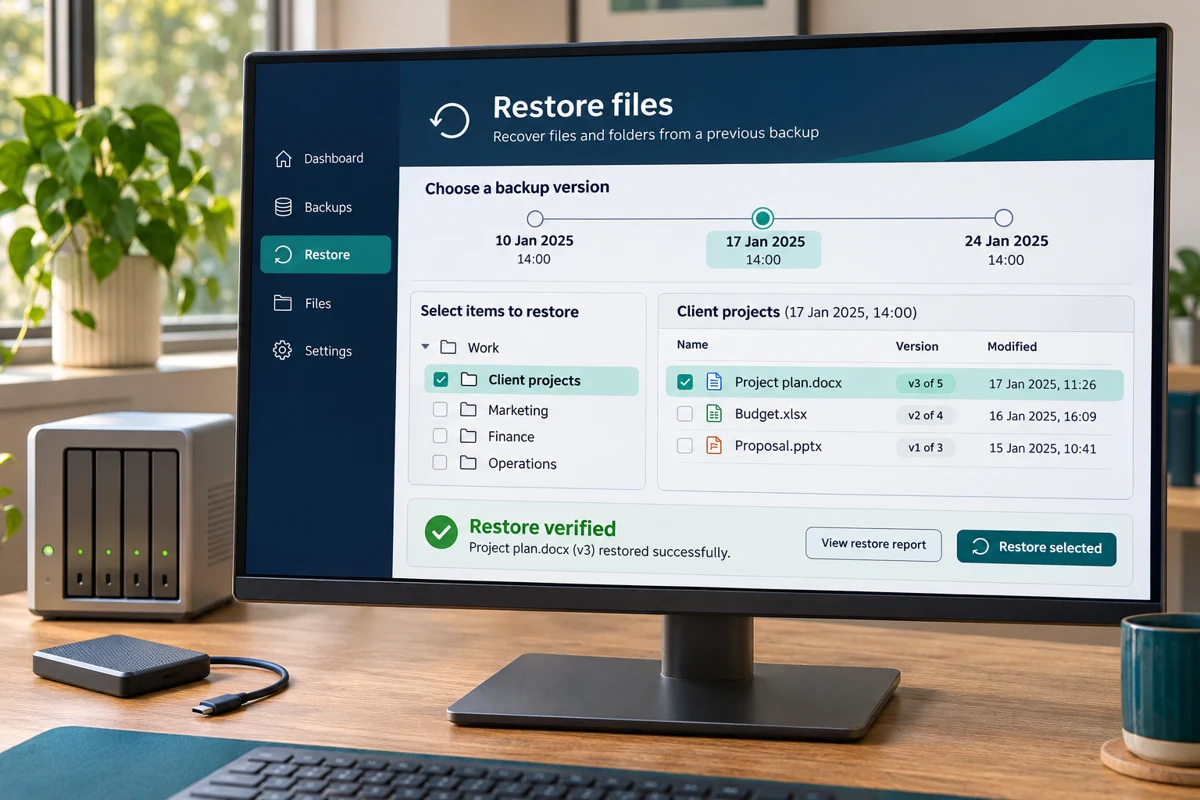
A successful backup notification is useful evidence that a job ran. A restore test answers the more important operational question: can you recover usable information? Choose a representative file, recover an earlier version into a separate test location and open it in the application that normally uses it.
For a project folder or application, test the related files and permissions too. Record the recovery point, elapsed time, who performed it and whether the result was usable. For suspected ransomware, recovery also requires a clean environment and a suitable recovery point; do not restore blindly into a compromised system.
A practical approach
Restore a real file before you need to
- SelectA representative earlier version.
- RestoreUse a separate test location.
- VerifyOpen it and record the result.
Build the plan around the files you value
We would first identify where your business data lives and inspect the protection already available. Then agree recovery priorities, copy locations, access controls, retention and monitoring. A small office may start with a modest local backup and a protected off-site copy rather than replacing its entire system.
Finish with a documented restore, a named owner for failed-job alerts and an agreed review schedule. Repeat the check after important changes such as a new laptop, a moved shared folder or a new cloud service. The useful deliverable is a recoverable working file and a clear procedure your business can follow.
A practical approach
Build the plan around the files you value
- AssessFind the important data.
- ProtectAgree copies and access.
- ProveRestore and document.
Sources & Further Reading
References checked 26 November 2026. Features and service availability can change.
Planning something similar?
Tell us what you already have and what you would like to improve. We will help plan the next practical step.
Discuss Your Project